Settings
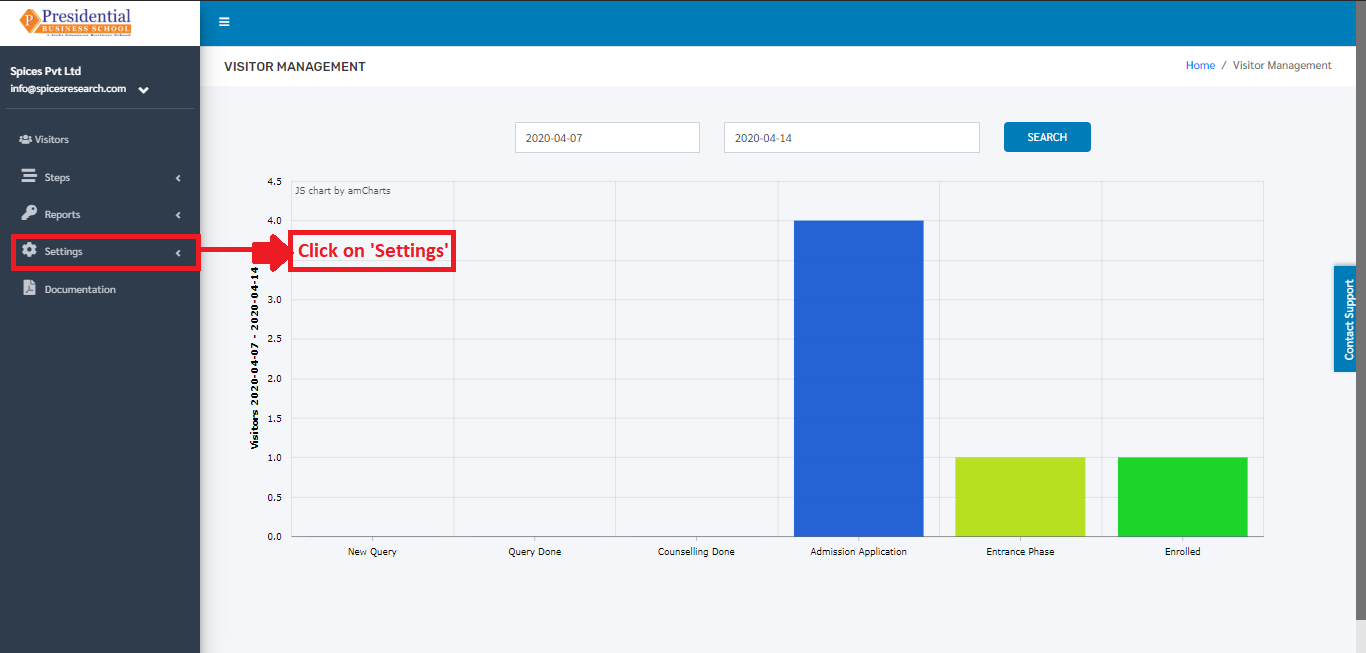
The sub-module ‘Settings’ is used to set the fee for Application Form and set the evaluation terms for Interview.
Users must click on ‘Settings’ on the left hand side of the dashboard to access it. This is done by the following process.
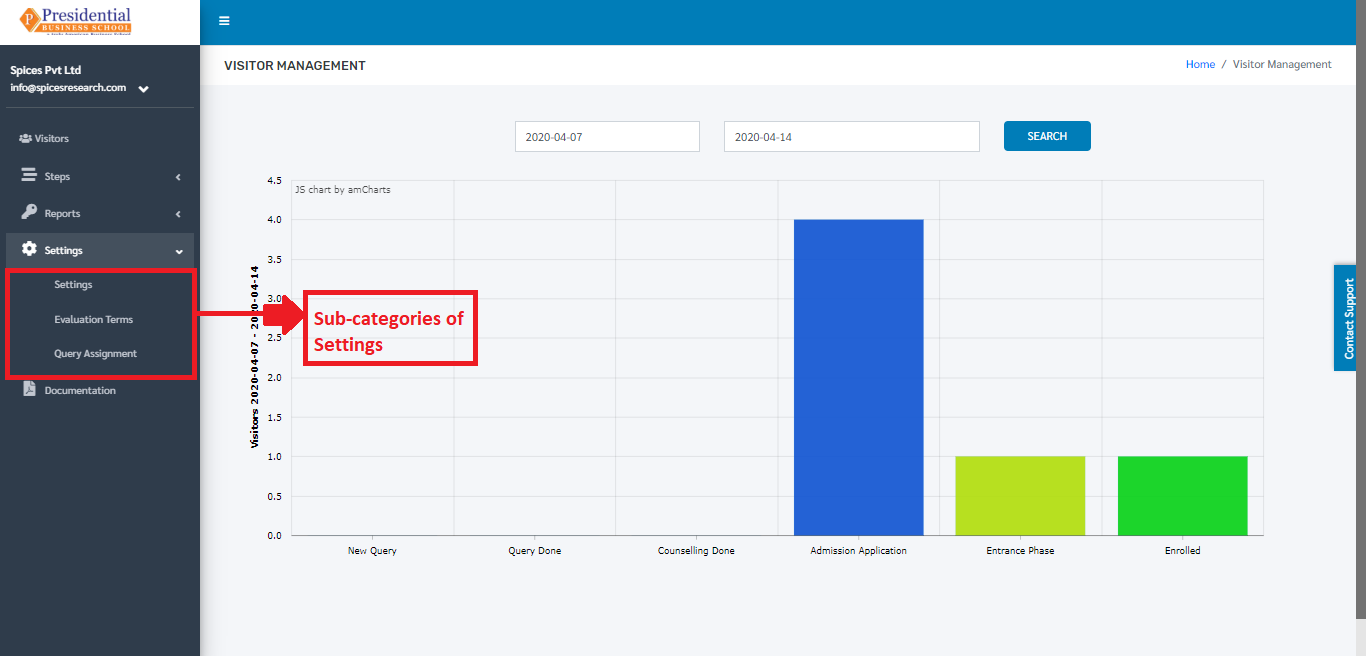
On clicking on Reports, three subcategories will appear namely Settings, Evaluation Terms and Query Assignment.
1. Settings
This subcategory is used for setting up the fee for Application Form.
The user from the college must click on ‘Settings’ to access this subcategory. This is done by the following process.
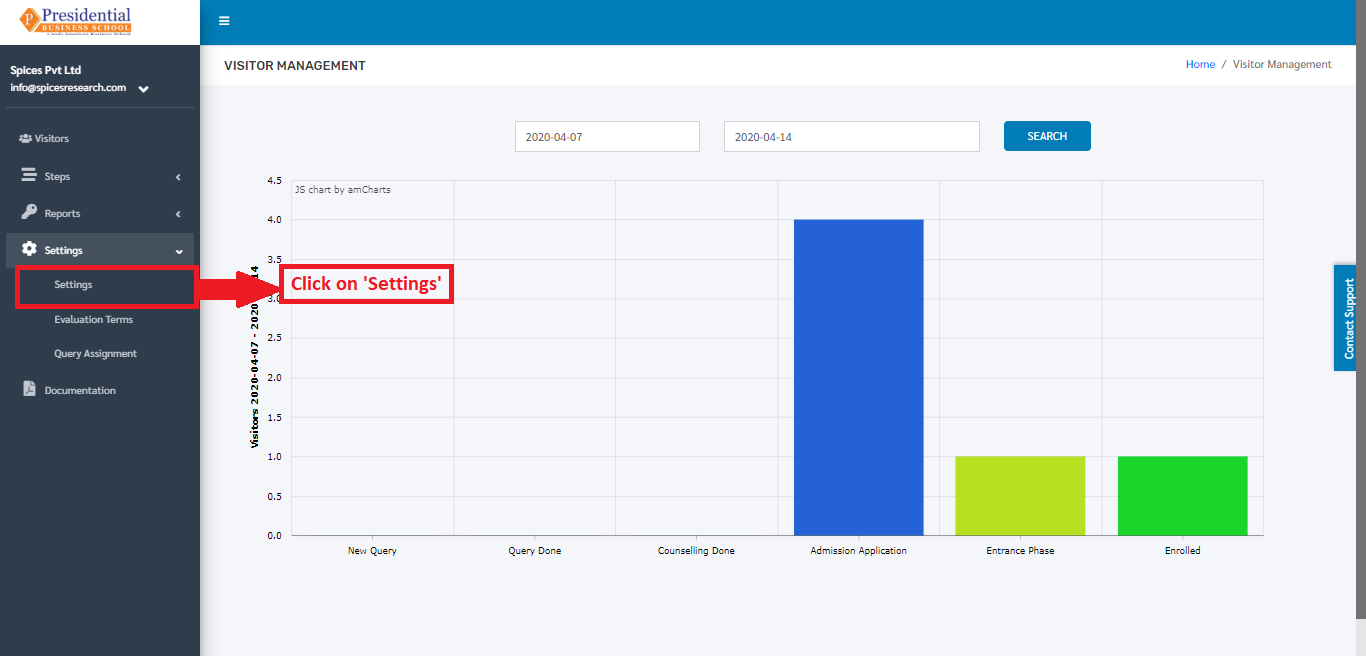
The following page will appear on clicking Settings.
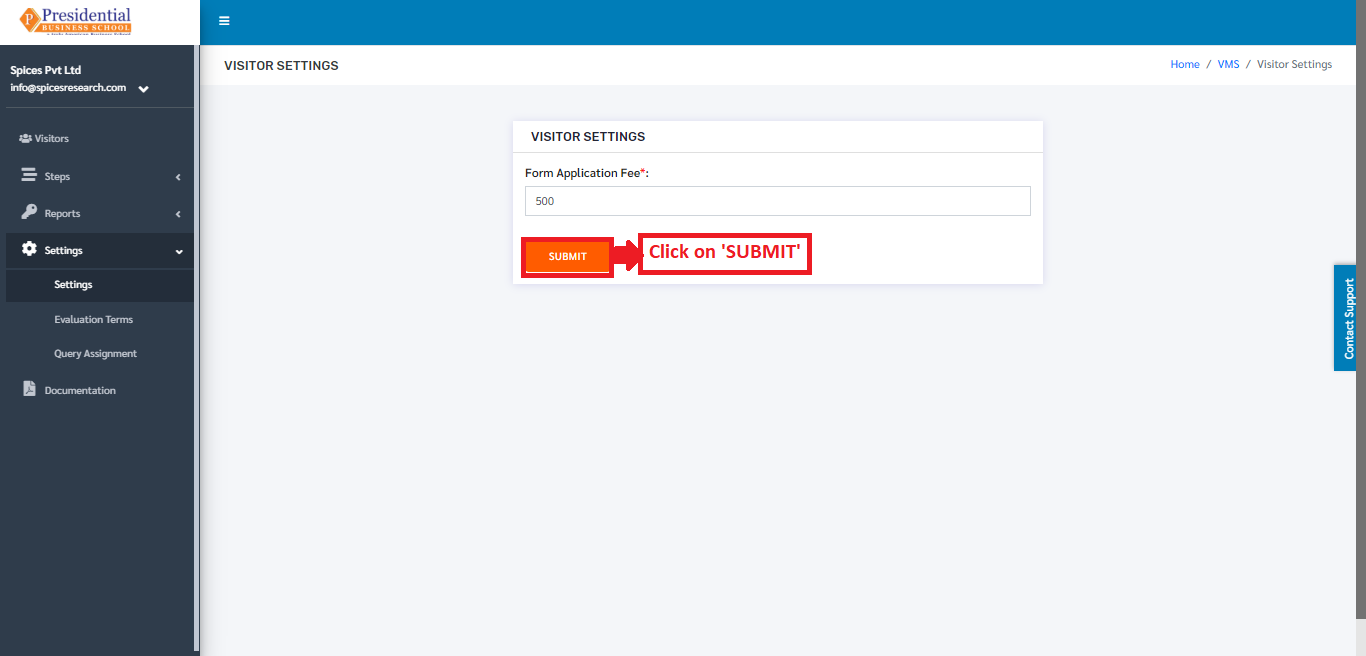
The Form Application Fee can be set up to the desired amount as per the college rule. The user must then click on the ‘SUBMIT’ button to finish up the process.
2. Evaluation Terms
This subcategory is used for setting up the evaluation terms for the Interview.
The user from the college must click on ‘Evaluation Terms’ to access this subcategory. This is done by the following process.
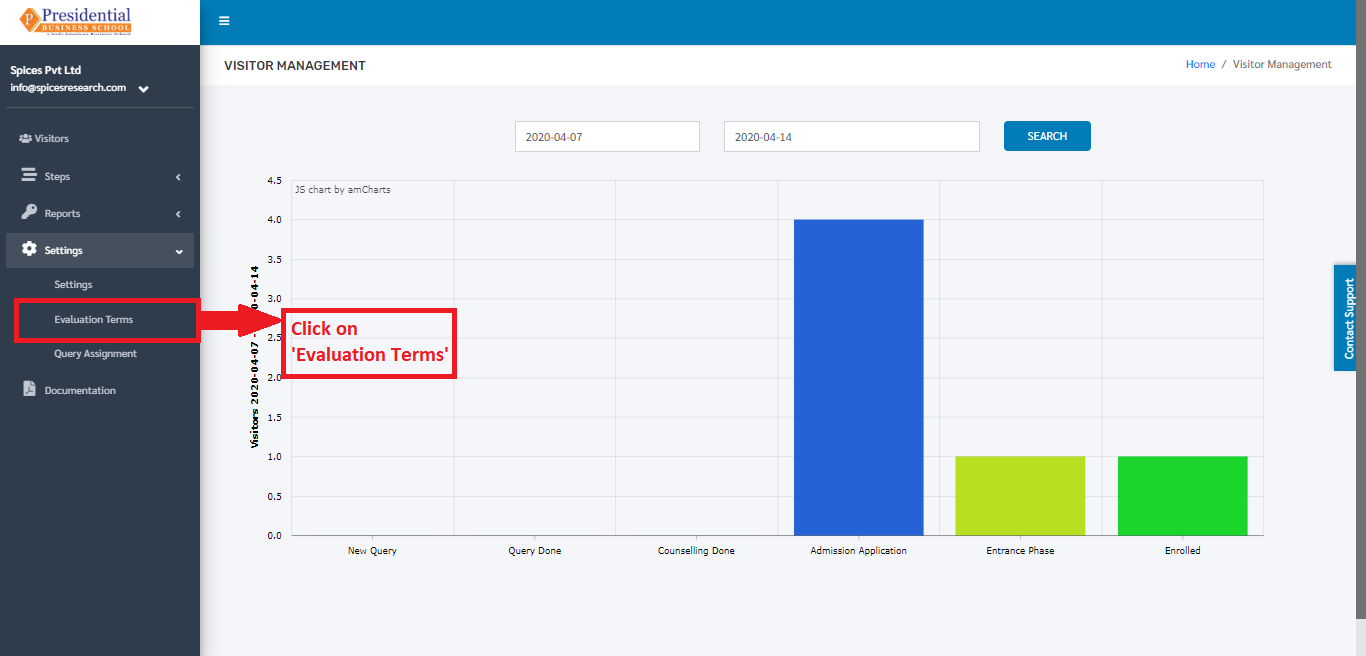
The following page will appear on clicking Evaluation Terms.
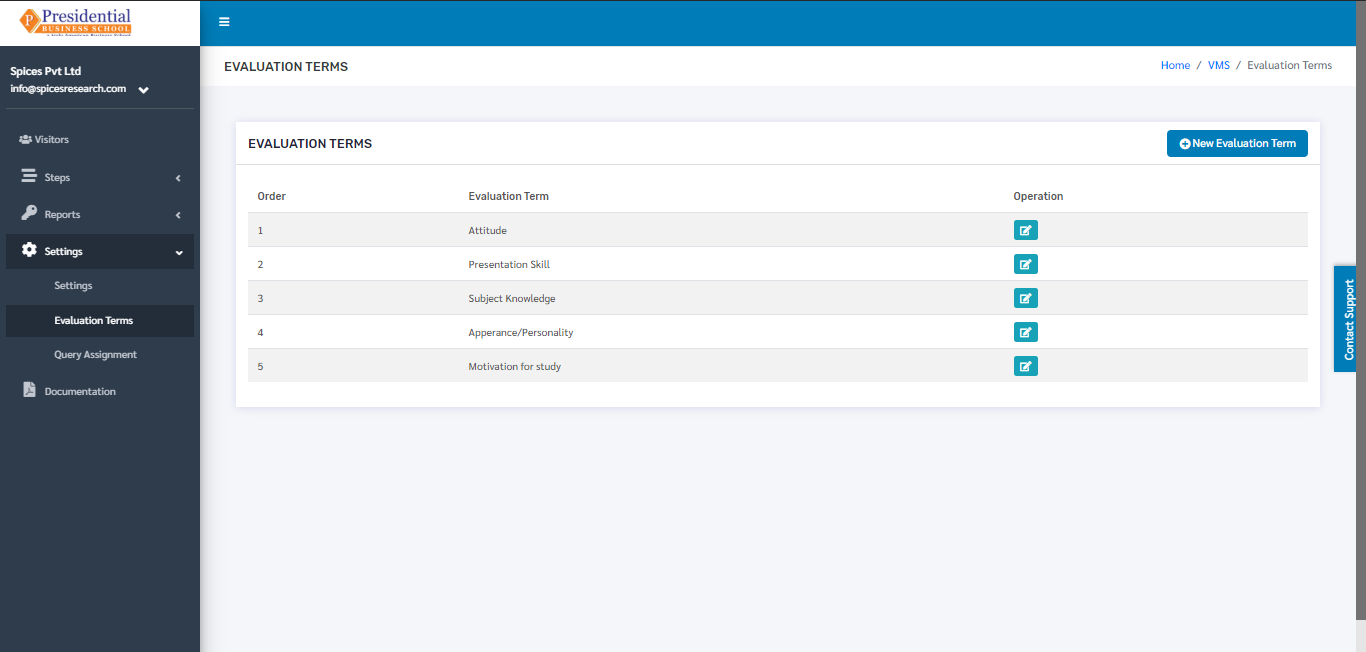
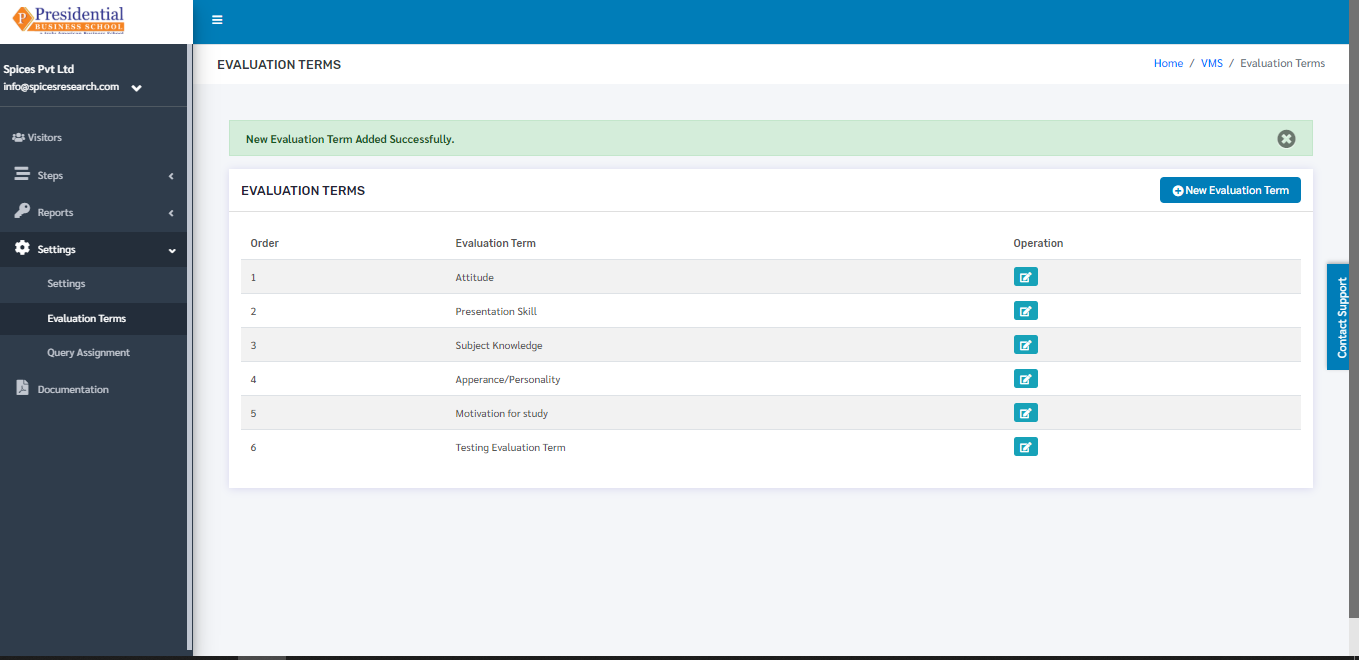
The page provides the information on the existing evaluation terms used for the interview.
2.1 Create New Evaluation Term
Users can create a new evaluation term in the system by clicking on the ‘New Evaluation Term’ button(icon) on the top right hand side of the dashboard as shown in the picture below.
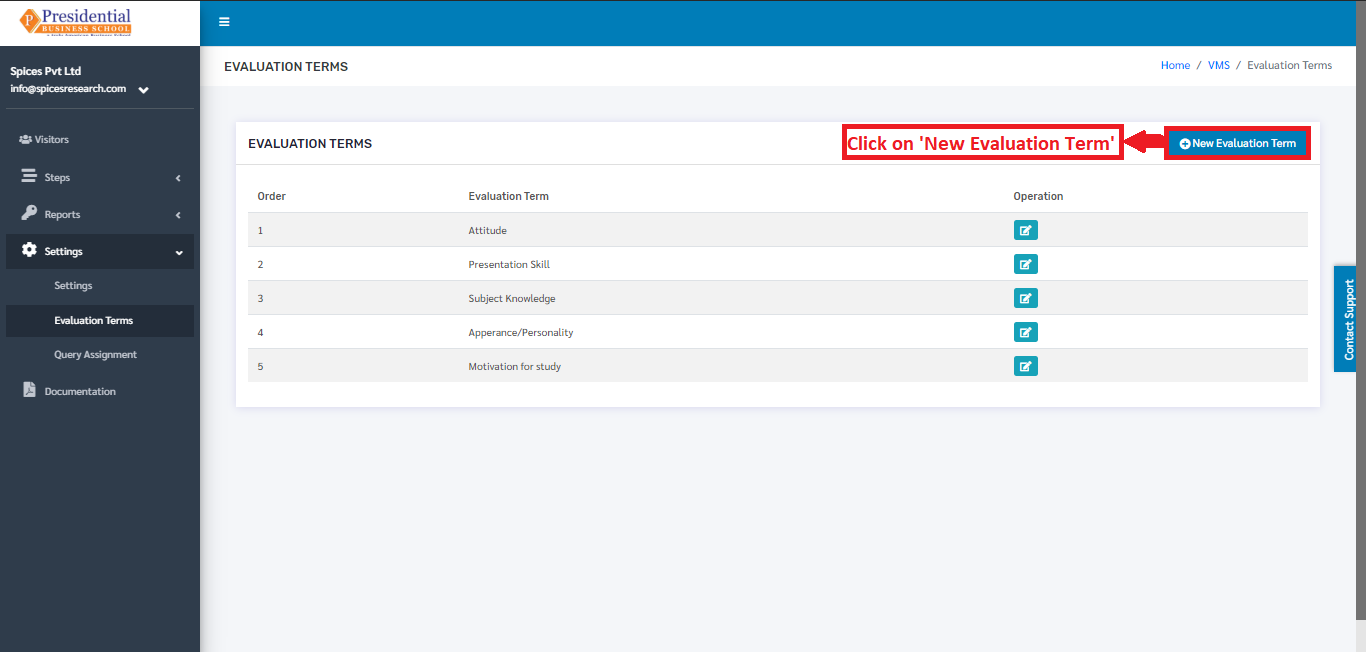
On clicking the ‘New Evaluation Term’ button(icon), the user will be landed on the following page.
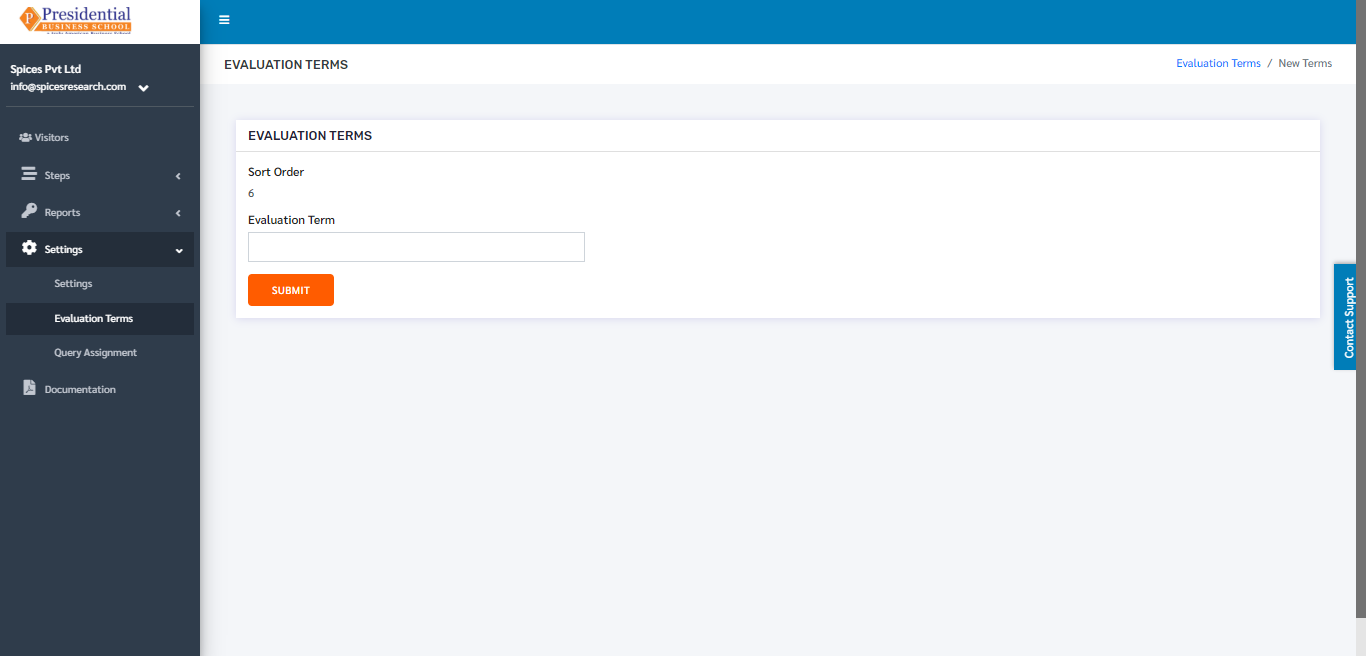
As shown in the picture below, the user must fill out the form and click on the ‘SUBMIT’ button to finish up the creation of the new evaluation term.
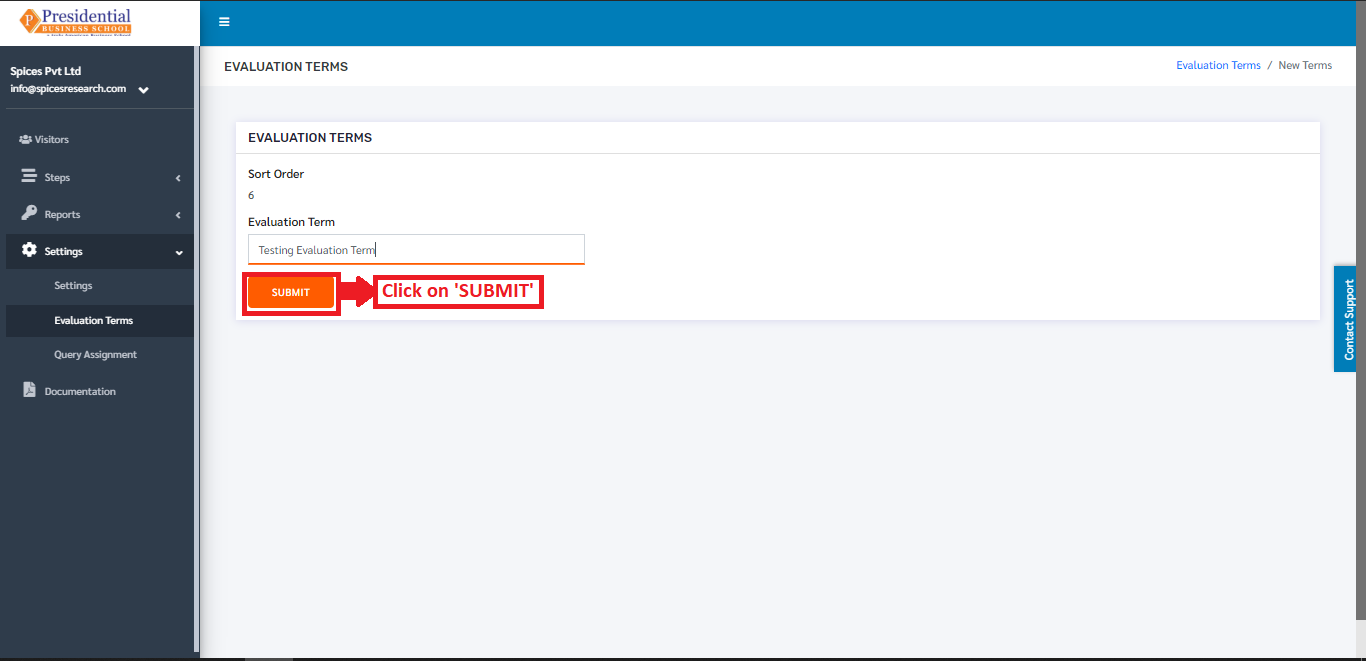
Once the ‘SUBMIT’ button is clicked a new evaluation term is created and seen on the dashboard of Evaluation Term.
2.2 Edit Evaluation Terms
Details of the evaluation terms can be edited as well. This is done by clicking on the ‘Edit’ icon(button) under the Operation column.
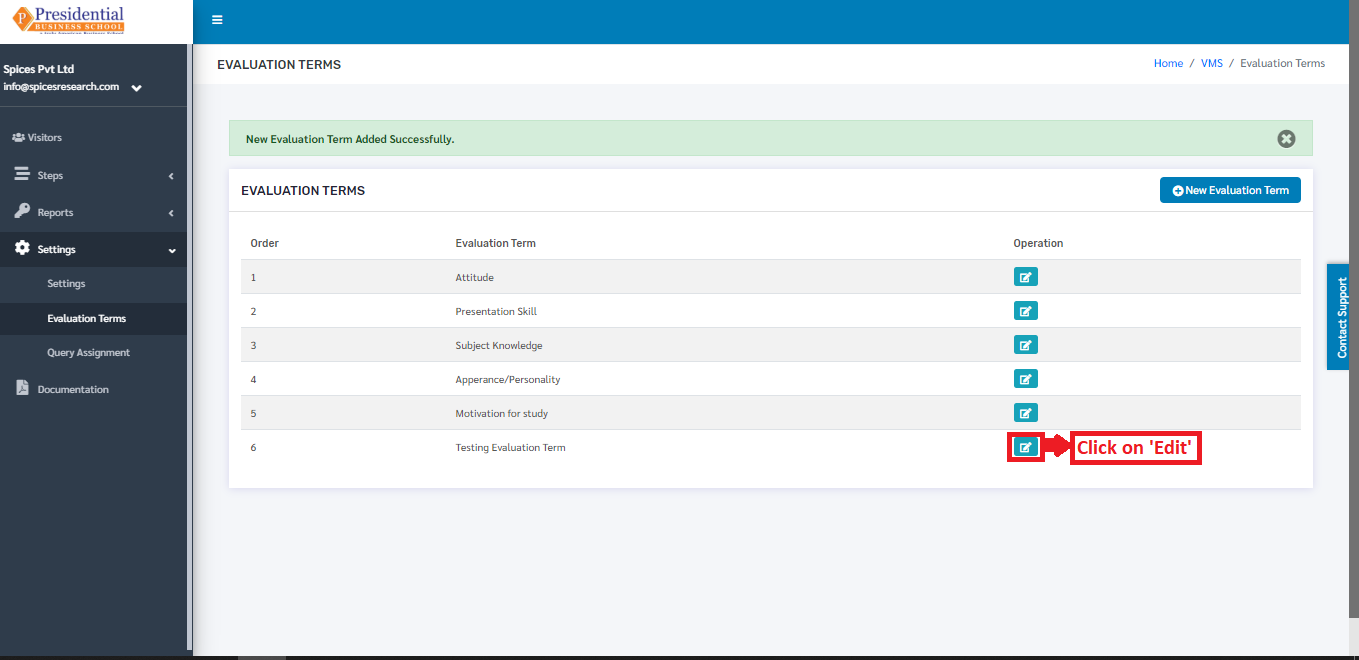
On clicking the ‘Edit’ button, the following page will appear.
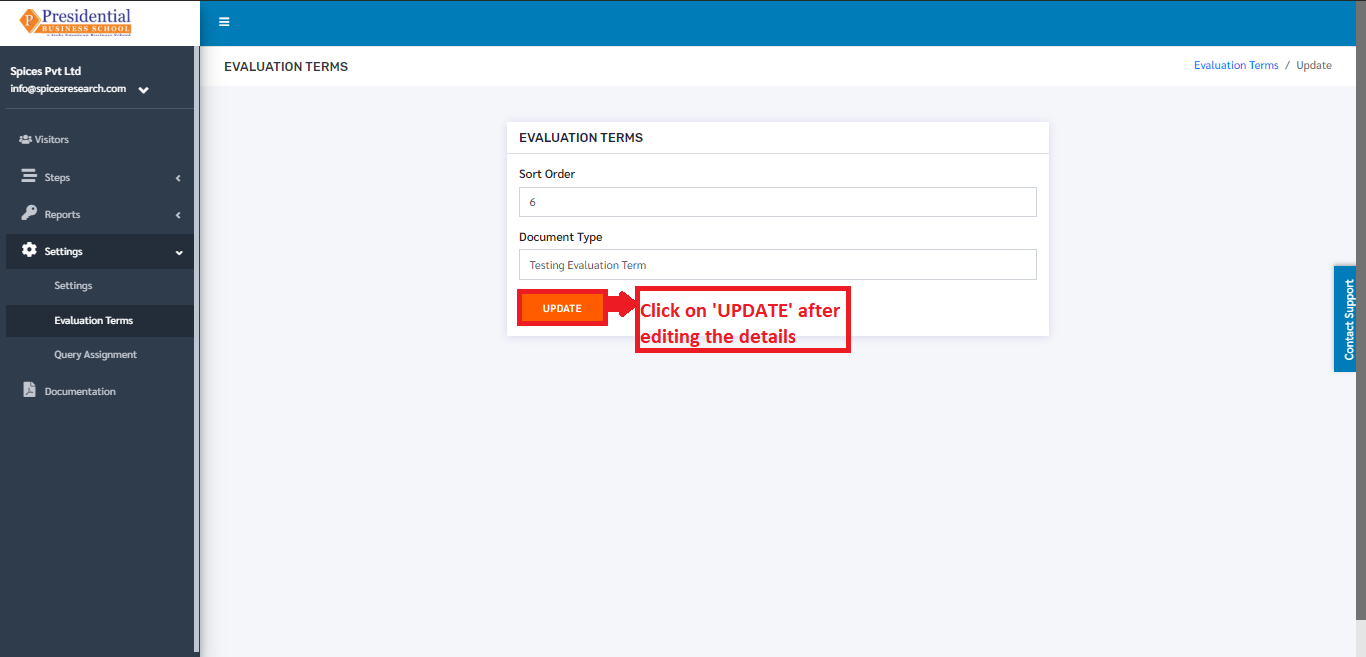
Once the details are edited, the user must click on the ‘UPDATE’ button to finish up the editing process.
3. Query Assignment
The user(admin) from the college must click on ‘Query Assignment’ to access this subcategory. This is done by the following process.
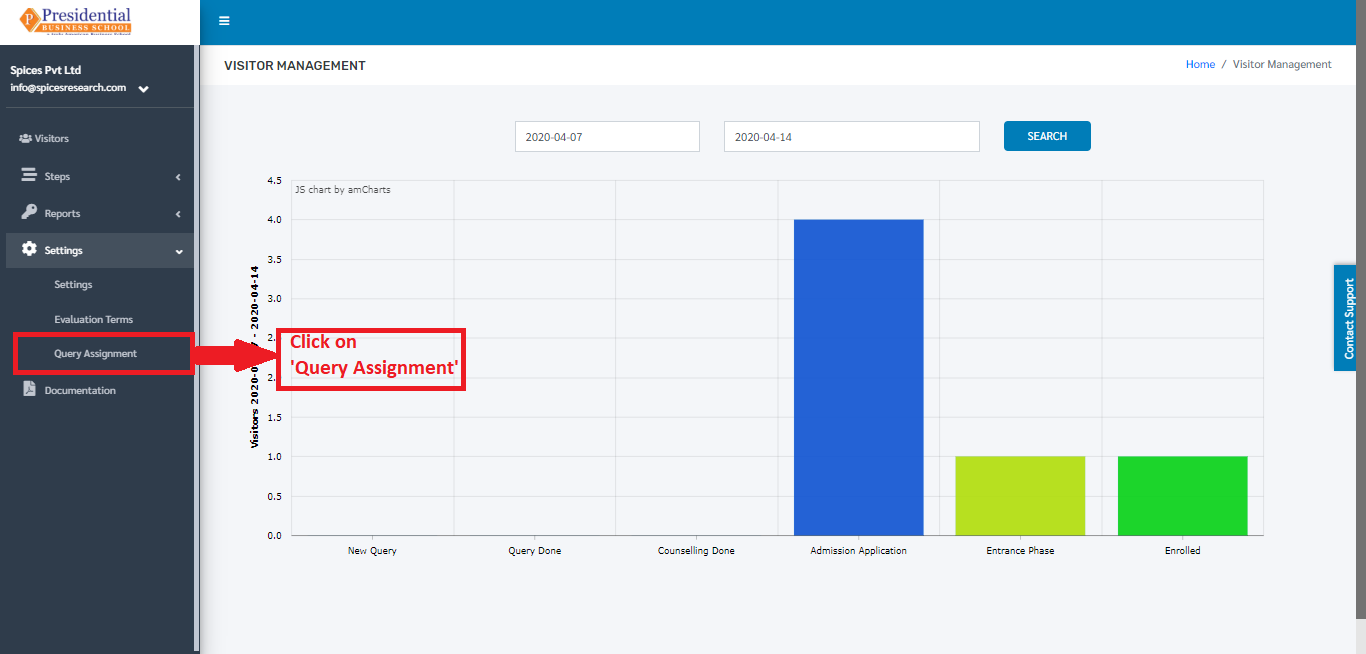
The following page will appear on clicking the Query Assignment.
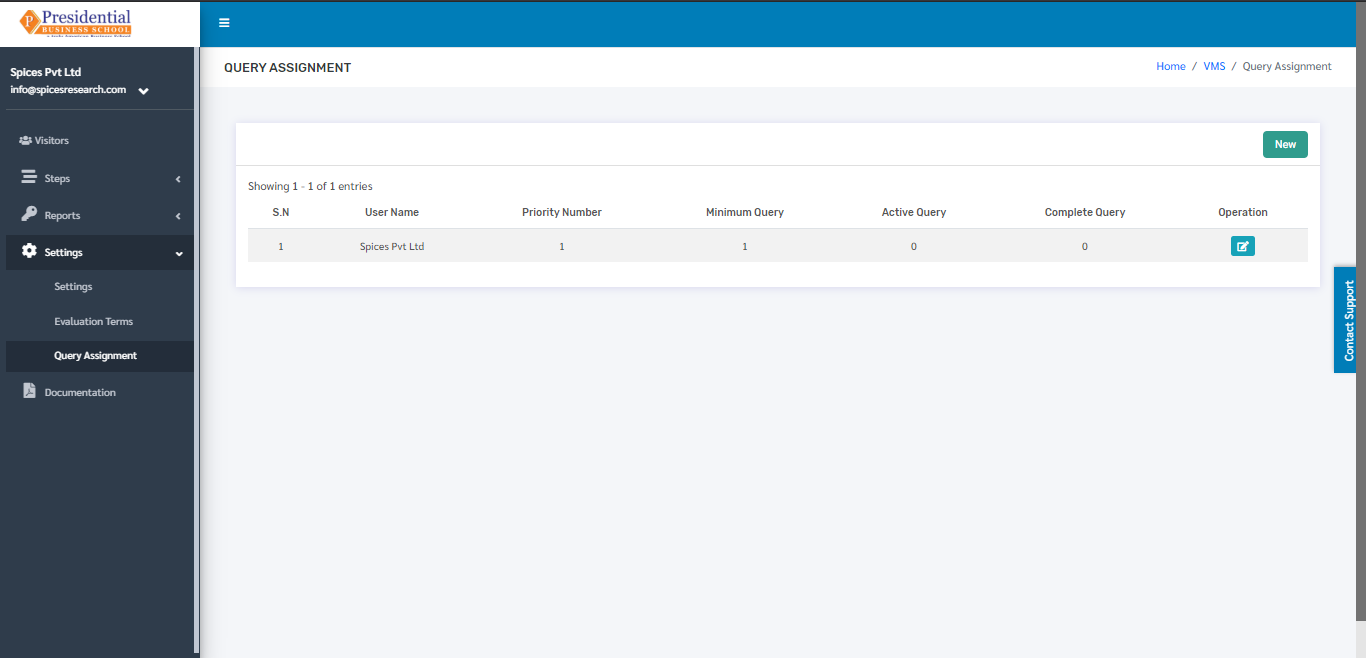
Here, User can create a new Query assignment by clicking on the New button.
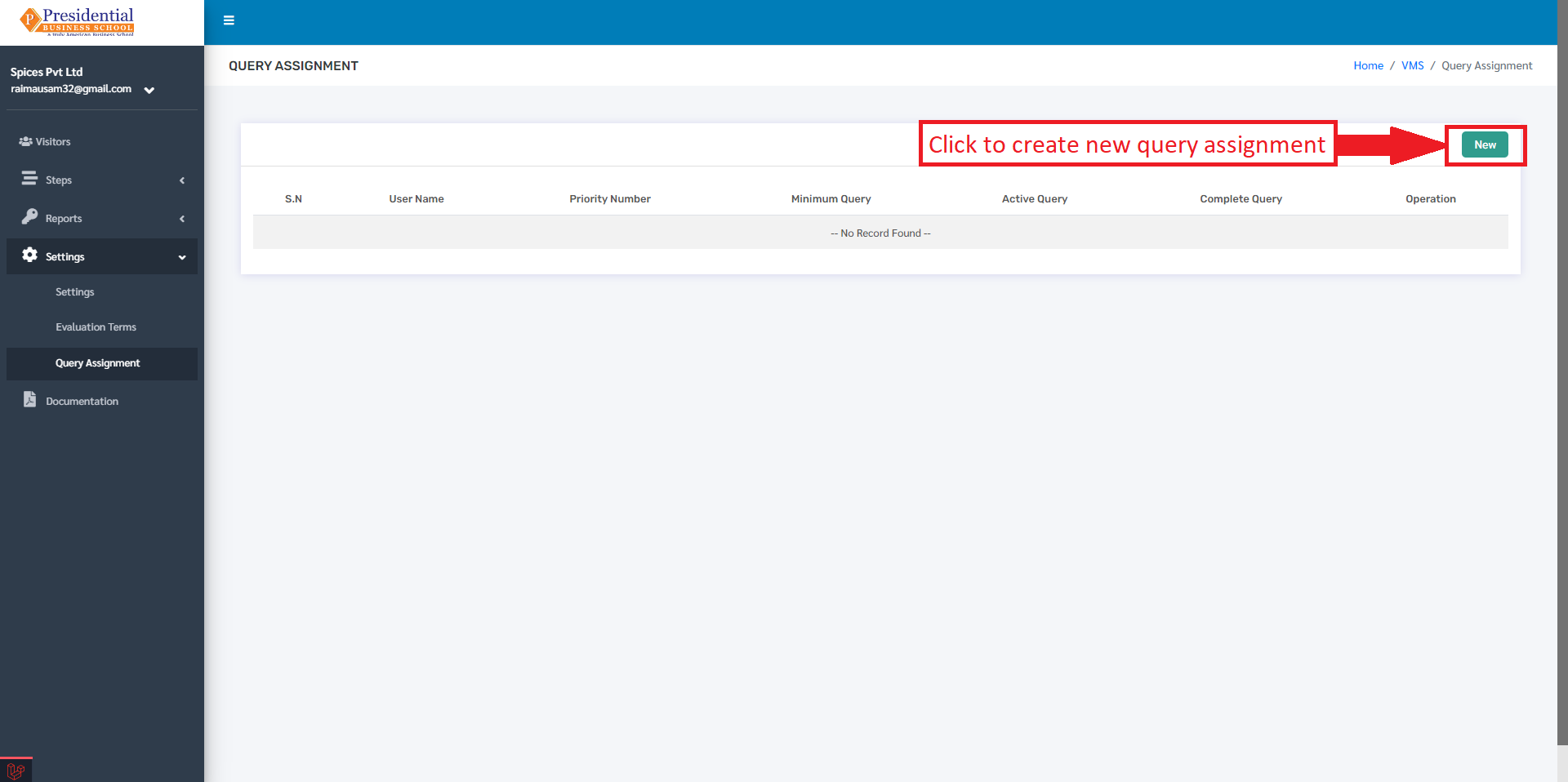
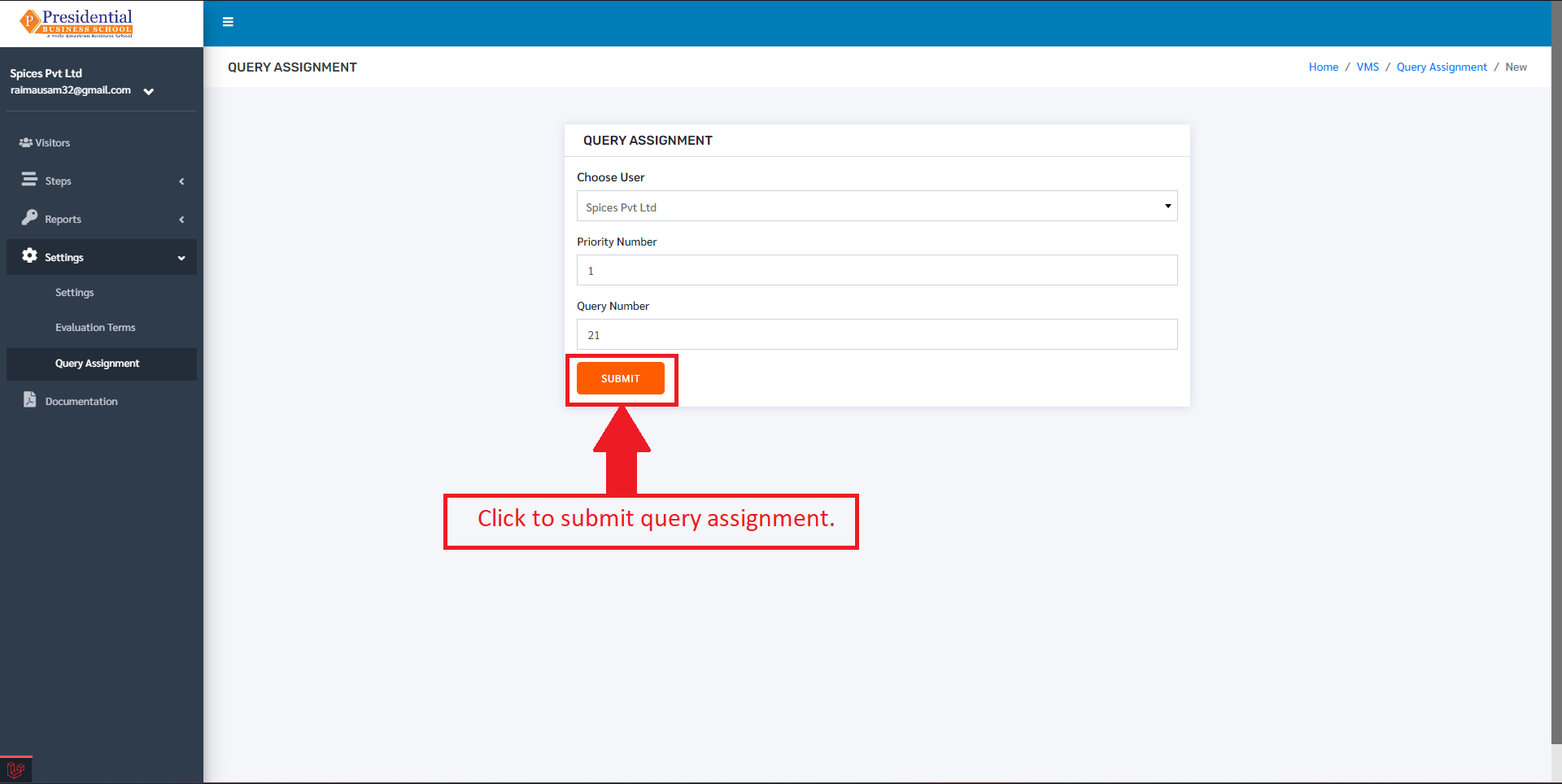
After clicking on the ‘New’ button, a form will appear. After filling the form for the new query assignment, the user should click on the submit button to submit the new query assignment.
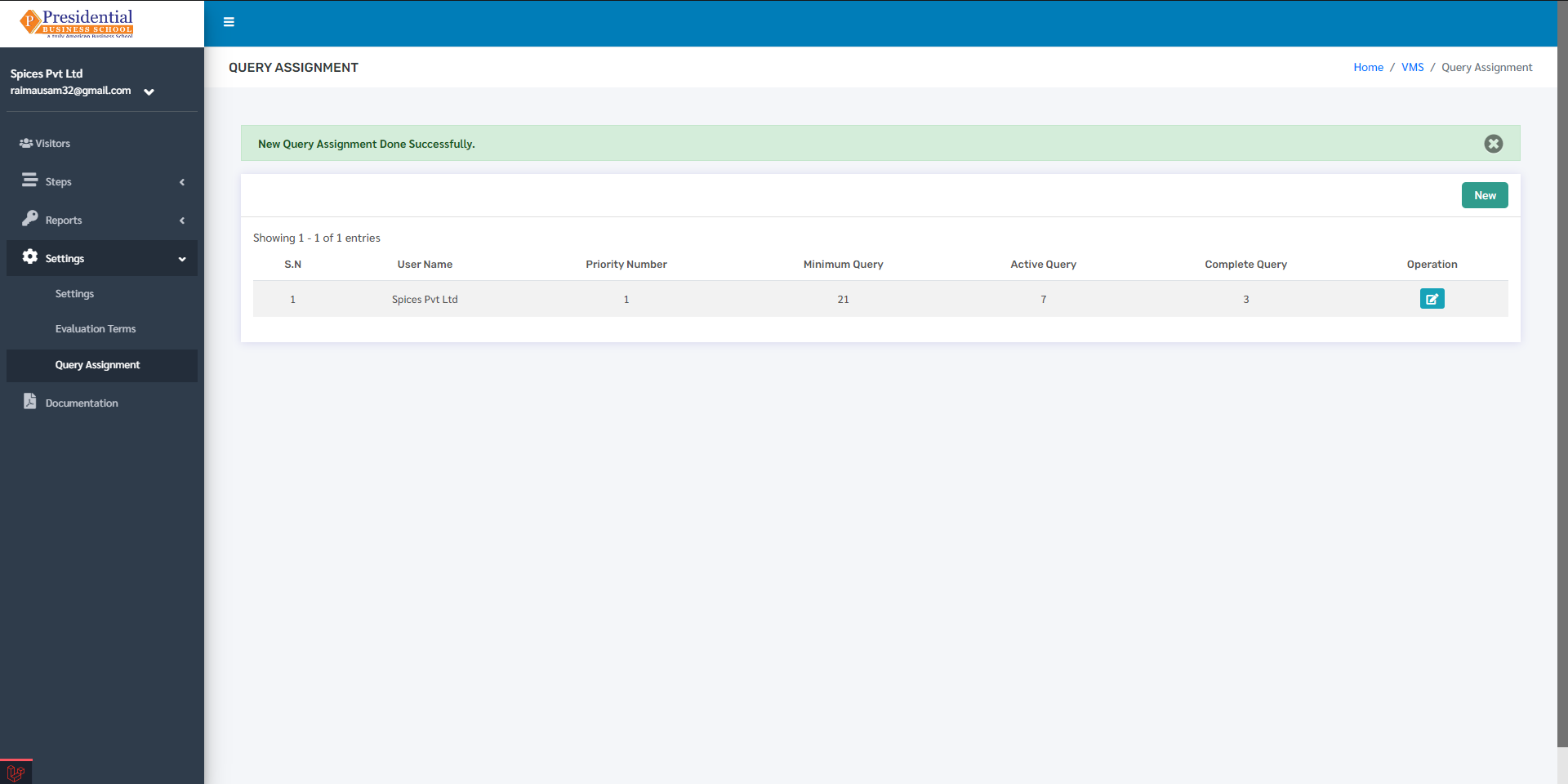
After clicking on Submit, a confirmation message will appear as well as the new Query Assignment which looks like the following.